Get both Garmin apps
On your phone, install Garmin Connect and Connect IQ. They're separate free apps and you need both — Garmin Connect pairs and syncs the watch, Connect IQ is where PulseDeck's settings live. Sign in to Garmin Connect and check your watch is paired before going on.
Install the PulseDeck field
On your phone, tap the button below (it opens the Connect IQ store) and hit Get it / Install, then pick your watch. It syncs across on its own — no watch buttons yet.
Get PulseDeck on Connect IQ ↗Add it as a data field
When the field finishes syncing, your watch asks which activities to add it to. Pick Cardio — that's the activity PulseDeck classes use.
If it didn't ask, do it by hand: open Cardio on the watch, then hold MENU → Data Screens → Edit → tap any field slot → Connect IQ Fields → PulseDeck. (Exact wording varies a little by watch model — look for "Connect IQ" in the field-picker list.)
A data field belongs to one activity. Add it to Cardio and start a Run instead, and PulseDeck won't be on the screen — you won't appear on the board and nothing will say why.
Enter your gym code + name
Open the Connect IQ app on your phone — the separate one, not Garmin Connect. Scroll to My Data Fields — this row:
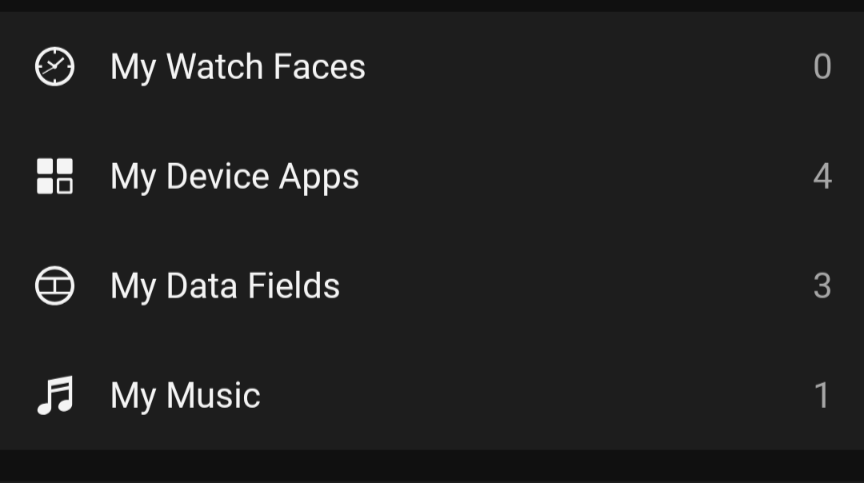
Tap My Data Fields → PulseDeck → Settings. You'll see exactly this — just two fields:
Type the gym code from your invite (or ask the front desk), plus your name so you show up correctly on the board. No password, no separate sign-up.
Start Cardio and check the TV
Start a Cardio activity on your watch, then look for your name on the gym TV. PulseDeck starts sending as soon as its field is on screen — you don't have to wait for the timer.